 ProMapRanker
Best AI Presentation Software for Education in 2026

Key takeaways
- The best education presentation tool depends on what your school accepts: PowerPoint, Google Slides, or a shared link.
- Canva for Education is free for verified K-12 teachers and students, which makes it the value pick for classrooms.
- AI drafts save prep time, but teachers should still check facts, reading level, and accessibility before presenting.
- Pick tools with education privacy protections and clear controls over student data, not just the fastest deck builder.
Quick comparison
| Pick | Great for | Pricing starts at | Free tier | |
|---|---|---|---|---|
 Canva for Education | K-12 classrooms | Free | Yes | Visit |
 Gamma | Fast polished decks | See website | Yes | Visit |
 Prezi | Engaging lesson delivery | See website | Yes | Visit |
 Microsoft Copilot in PowerPoint | Microsoft schools | See website | No | Visit |
 Gemini in Google Slides | Google schools | See website | No | Visit |
 SlidesAI | Budget Google Slides decks | See website | Yes | Visit |
 Plus AI | Editing inside Slides and PowerPoint | See website | Free trial | Visit |
 Curipod | Interactive lessons | See website | Yes | Visit |
The best AI presentation software for education
Teachers and students need different things from a presentation tool: teachers need fast lesson decks they can trust, and students need decks they can edit and submit in the required format. The tools below cover both sides, with education pricing and classroom features where they exist.
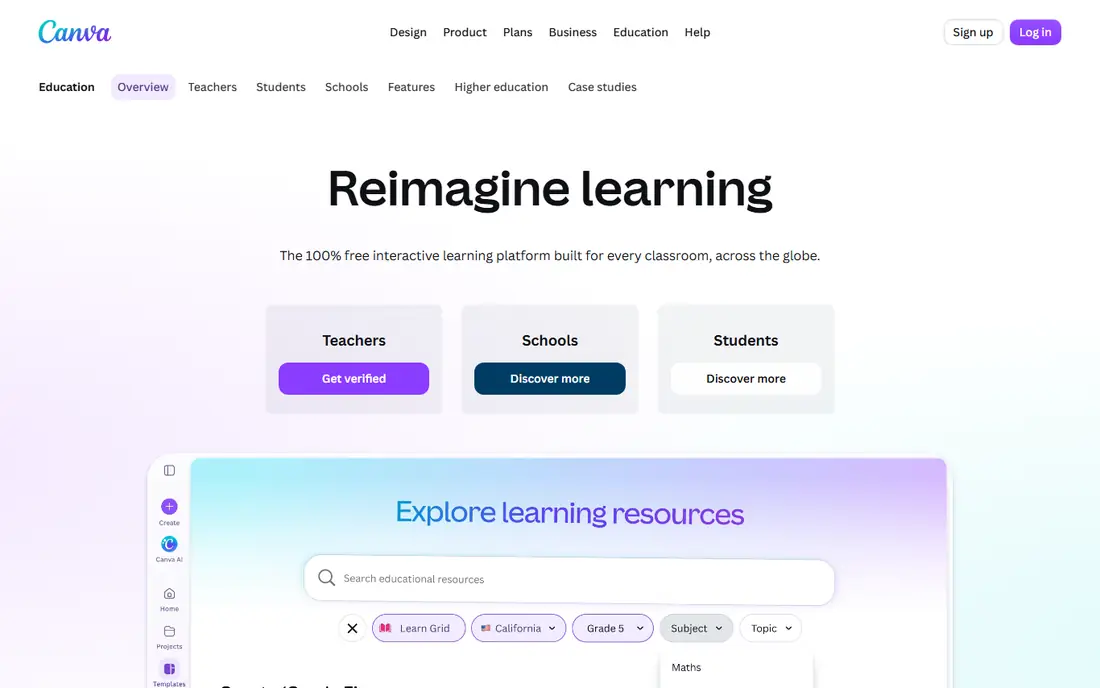
Canva for Education is free for K-12 teachers and their students, and Canva describes it as FERPA and COPPA compliant for education accounts. That combination is hard to beat for classroom use: teachers get design tools, templates, and AI-assisted creation without a per-teacher budget fight. Students can collaborate on decks and teachers can share work with classes easily.
The main limit is that free education access is aimed at K-12, while higher-education access depends on whether the institution offers Canva for Campus. AI generation quality also varies by feature, so teachers should still review every slide. Canva for Education suits K-12 classrooms that want a free, visual, collaborative deck tool.
- Free for verified K-12 teachers and students
- Huge template library
- Easy sharing and classroom controls
- Higher-education access depends on the institution
- AI features vary by plan
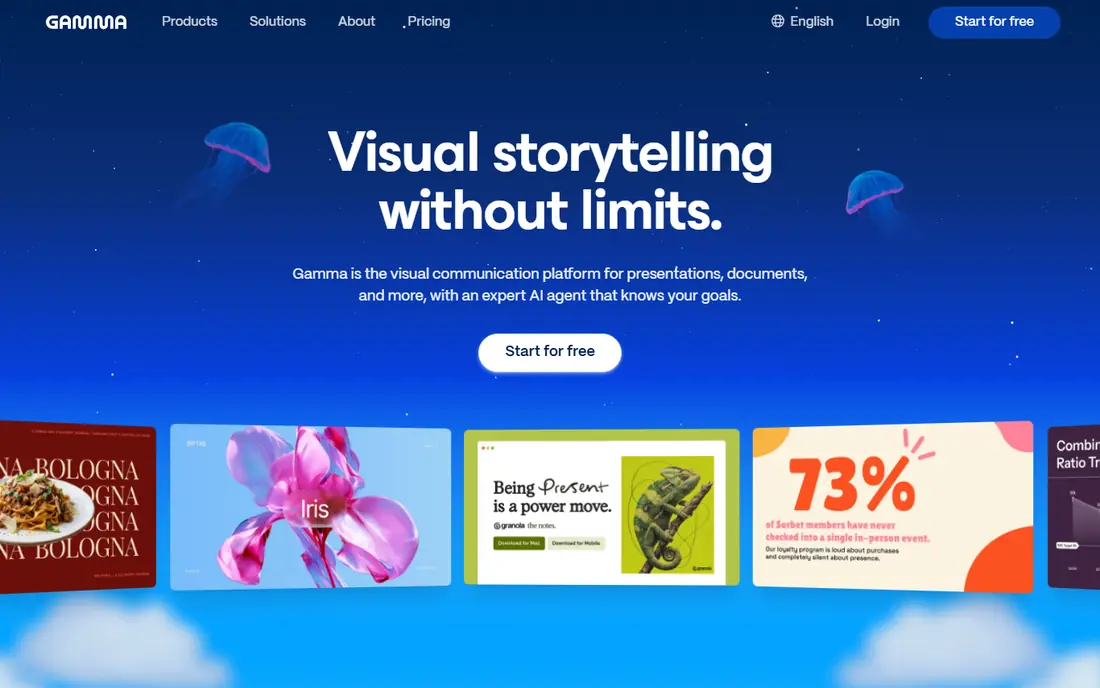
Gamma turns a prompt, outline, or document into a polished, web-native deck in minutes, which helps students and teachers facing a tight deadline. Its designs look modern without manual formatting, and PowerPoint export matters when a teacher requires a .pptx file. That export step is the detail students should confirm before relying on Gamma for graded work.
Free credits limit how many decks you can generate without paying, and heavy editing is sometimes easier in PowerPoint or Slides after export. Gamma suits students and teachers who want a fast, good-looking first draft they can then edit and submit.
- Prompt-to-deck speed
- Modern designs
- PowerPoint export for submissions
- Web-native format needs export for some classes
- Free credits are limited
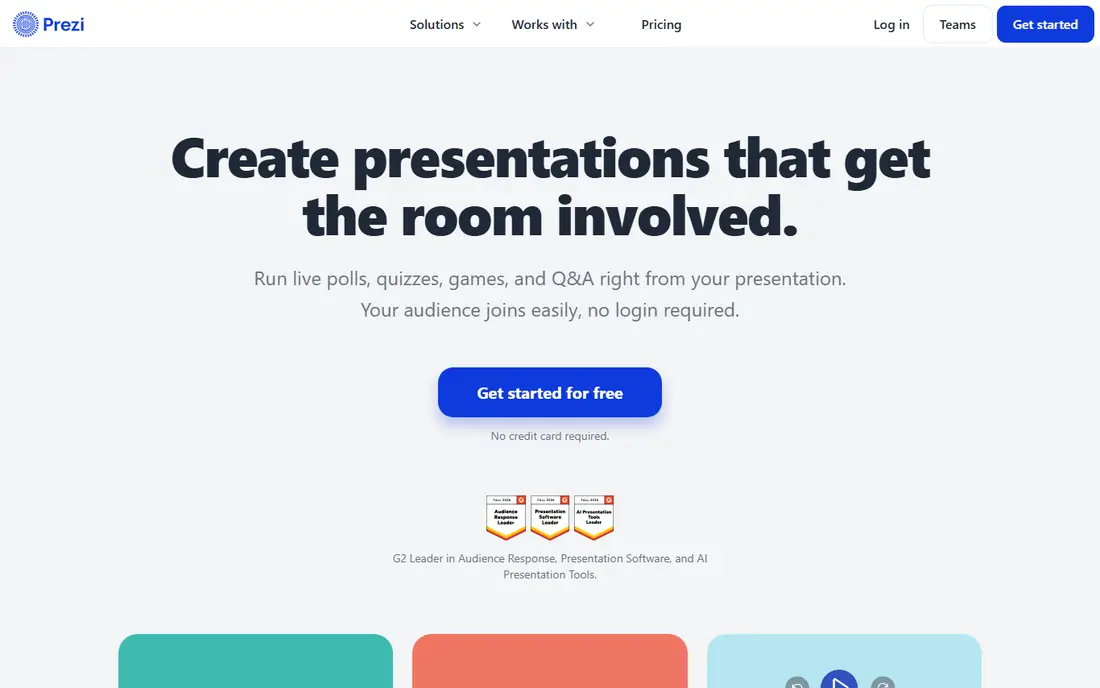
Prezi AI builds decks with a zoomable canvas that connects ideas visually, rather than a strict slide-by-slide sequence. For lessons where relationships matter, such as history timelines or science processes, that structure can hold attention better than a flat deck. Prezi also offers live polls, word clouds, and presenter tools that support classroom interaction.
The style takes practice, and teachers used to classic slides may need time to plan a Prezi well. It also fits live delivery better than a printed handout. Prezi suits teachers who want engaging, story-led lessons and are willing to learn a different presentation style.
- Zoomable, non-linear presentations
- AI deck generation
- Built-in polls and engagement tools
- Non-linear style needs practice
- Export options differ from classic slide tools
Microsoft Copilot in PowerPoint helps teachers and students draft decks from an outline or document without leaving PowerPoint. For schools already on Microsoft 365, that fit is the main advantage: files stay in the school's system, sharing follows existing controls, and students submit in the format teachers expect. Copilot can also summarize and restructure existing decks.
The catch is licensing. Copilot Chat may be free on some academic licenses, but Copilot inside PowerPoint requires a paid add-on, with academic pricing reported around $18 per user per month. Check your school's license before planning lessons around it. Copilot suits Microsoft schools that already pay for the add-on or plan to.
- Works inside PowerPoint schools already use
- Drafts from documents and outlines
- Enterprise controls
- Full Copilot in PowerPoint needs a paid add-on
- Academic pricing varies
Gemini in Google Slides lets Google-based schools generate slides, images, and summaries inside the Slides workflow students already use. That matters for classes that submit through Google Classroom, since no export step is needed and collaboration stays in Google tools. Teachers can draft a lesson deck from notes and refine it with students in real time.
Availability depends on license: Gemini features in Slides are included with Workspace for Education Plus or the Teaching and Learning add-on, and some features are limited to users aged 18 and older. Check your school's Workspace edition first. Gemini suits Google schools with a qualifying license.
- Works inside Google Slides
- Generates slides and images
- Fits Google Workspace schools
- Full Slides AI features need Workspace for Education Plus or an add-on
- Age limits apply
SlidesAI is a Google Slides add-on that turns text into a deck inside Slides, which makes it one of the cheapest routes to AI slides for Google classrooms. Teachers can paste lesson notes and get an editable deck without leaving Slides, and students can use the same workflow for class reports. Pricing has been listed around $10 per month for Pro, with a free tier for light use.
Design options are narrower than full design platforms, so decks may need manual polish for a formal presentation. SlidesAI suits budget-conscious Google schools that want quick, editable text-to-deck inside Slides.
- Runs inside Google Slides
- Low-cost text-to-deck
- Quick for lesson outlines
- Design range is narrower than Canva or Gamma
- Paid plan needed for heavier use
Plus AI works inside Google Slides and PowerPoint, and its strength is improving existing decks, not only generating new ones. Teachers with years of old lesson slides can refresh layouts, rewrite text, and restructure decks without rebuilding them by hand. That editing focus sets it apart from prompt-only generators.
Free access is trial-based, so ongoing classroom use needs a paid plan. As with all AI tools, teachers should check facts and reading level before presenting. Plus AI suits teachers who already have slide libraries and want to update them efficiently.
- Works inside Google Slides and PowerPoint
- Edits existing decks
- Good for updating old lessons
- Trial only on free access
- AI output still needs teacher review
Curipod turns an article, video, or PDF into an interactive lesson deck with polls, drawings, and instant formative checks. That interaction focus helps teachers see whether students understood a point before moving on, rather than discovering gaps at test time. It is a strong pick for live classroom delivery and review sessions.
Curipod is less suited to a formal deck a student must submit as a file, since its strength is live participation. Free plan limits also apply to heavier classroom use. Curipod suits teachers who want lessons students join, not just watch.
- Live polls, drawings, and formative checks
- Turns articles and PDFs into decks
- Classroom interaction focus
- Best for live lessons, less for formal submitted decks
- Free plan limits apply
How we picked these
We compared tools named in 2026 guides for teachers and students, then checked vendor education pages for K-12 pricing, classroom features, and file formats. We favored tools with education access, editable output, and a clear fit for PowerPoint, Google Slides, or live delivery. We did not claim hands-on testing, and we used "See website" where pricing varies by school license.
How to choose for your classroom
Start with the required file format. If the teacher requires PowerPoint, pick a tool with reliable .pptx export or work inside PowerPoint itself. If the class runs on Google Slides, pick a Slides-native tool. A beautiful deck in the wrong format costs marks and time, so format comes before design flair.
Next, check privacy and age rules. Use the school's education account, not a personal account, for student work, and confirm the tool's education privacy terms. Some AI features carry age limits or need an admin-enabled license. Your school IT team should approve the tool before students create accounts.
Using AI drafts responsibly
Treat every AI deck as a draft. Check dates, names, and claims against your lesson materials, adjust reading level for the class, and add alt text for images where the tool allows it. Students should cite sources for facts in their decks, just as they would in an essay, and teachers should model that habit in their own slides.
Balancing speed and learning
AI decks save prep time, but the learning happens when teachers adapt the draft to their students. Keep the parts that work, cut slides that do not serve the lesson goal, and add a question or activity slide that forces thinking. A fast deck that students ignore is worse than a slower deck they engage with.
Frequently asked questions
What is the best free AI presentation tool for teachers?
For verified K-12 teachers, Canva for Education is free and hard to beat for classroom decks. Google and Microsoft schools should also check what AI features their existing Workspace or Microsoft 365 license already includes at no extra cost.
Can students use AI to make presentations?
Yes, where school policy allows it, but students should treat AI output as a draft, check facts, and follow the teacher's rules on AI use and citation. The final deck should reflect the student's own understanding, not only generated text.
Should I use Gamma or Canva for a school presentation?
Use Gamma when you need a fast, polished draft and can export to the required format. Use Canva for Education when you want classroom collaboration, templates, and free K-12 access. Check the required submission format before you choose.
Do AI presentation tools work with PowerPoint and Google Slides?
Many do, but the path differs. Some tools export to PowerPoint, some run inside Google Slides, and some stay web-native with a share link. Confirm export or native support for your class format before you start.
Are AI presentation tools safe for student data?
Safety depends on the account type and the vendor's education terms. Use school-managed education accounts, avoid entering sensitive student data into prompts, and have IT approve tools that students will use with accounts.
How much time do AI presentation tools really save?
Teachers who use AI weekly report saving several hours a week in surveys, but results vary by subject and workflow. Expect savings on first drafts and formatting, and still budget time to check facts and adapt the deck to your class.
Sources
- https://prezi.com/blog/k-12-teachers-best-ai-presentation-tool-2026/
- https://2slides.com/blog/best-ai-presentation-tools-for-teachers-2026
- https://techstory.in/8-best-ai-presentation-software-for-educational-purposes-classroom-ready/
- https://www.anygen.io/showcase/best-ai-presentation-maker-for-students/index.html
- https://www.canva.com/education/
- https://gamma.app
- https://prezi.com
- https://www.microsoft.com/microsoft-365/copilot
- https://gemini.google.com
- https://www.slidesai.io
- https://www.plusdocs.com
- https://curipod.com
See where you really rank - block by block
ProMapRanker scans Google Maps across a grid of your service area. Simple monthly plans from $19, white-label on every plan.
Start freeKeep reading
 best contact center software
Best Contact Center Software in 2026
We compared the best contact center software on channels, AI tools, pricing and scale, so you can pick a platform that fits your team size and budget in 2026.
Read → best compliance management software
Best Compliance Management Software in 2026
Compare the best compliance management software in 2026, with framework coverage, automation, audit support and pricing models explained clearly for teams.
Read → best commercial property management software
Best Commercial Property Management Software in 2026
Compare the best commercial property management software for offices, retail, and mixed portfolios, with pricing, accounting, leasing, and honest trade-offs.
Read →