 ProMapRanker
Best AI Image Upscaler Enhancer Tools in 2026


Photographers and print work · Pricing starts at: $29 per month
Key takeaways
- Topaz Gigapixel is the pick for photographers who want control, batch work, and local processing for large enlargements.
- Magnific suits creative work where new texture and detail are welcome, but it needs close checking for product photos and factual images.
- Lets Enhance and Upscayl cover the middle ground: Lets Enhance for browser-based batch work, Upscayl for free local upscaling.
- Adobe Super Resolution fits Creative Cloud users who want upscaling inside Lightroom or Photoshop without another subscription.
- Upscalers can invent detail, so check faces, text, and product labels at full size before printing or publishing.
Quick comparison
| Pick | Great for | Pricing starts at | Free tier | |
|---|---|---|---|---|
| Topaz Gigapixel | Photographers and print work | $29 per month | No | Visit |
 Magnific | Creative enlargement | See website | Yes | Visit |
 Lets Enhance | Browser batch upscaling | $9 per month | Yes | Visit |
 Upscayl | Free local upscaling | Free | Yes | Visit |
 VanceAI | Web upscaling with many tools | See website | Yes | Visit |
 HitPaw Photo Enhancer | Simple desktop enhancement | See website | Free trial | Visit |
 ON1 Resize AI | Resize inside a photo workflow | See website | Free trial | Visit |
 Adobe Super Resolution | Creative Cloud users | See website | Free trial | Visit |
 Remini | Face and old photo restoration | See website | Free trial | Visit |
The best ai image upscaler enhancer tools
We compared vendor pricing pages, model descriptions, and recent 2026 roundups for tools that enlarge images and improve detail. Some tools aim for faithful recovery, while others use generative models that add new texture. That difference matters more than headline resolution, especially for product photos, documents, and archival images.
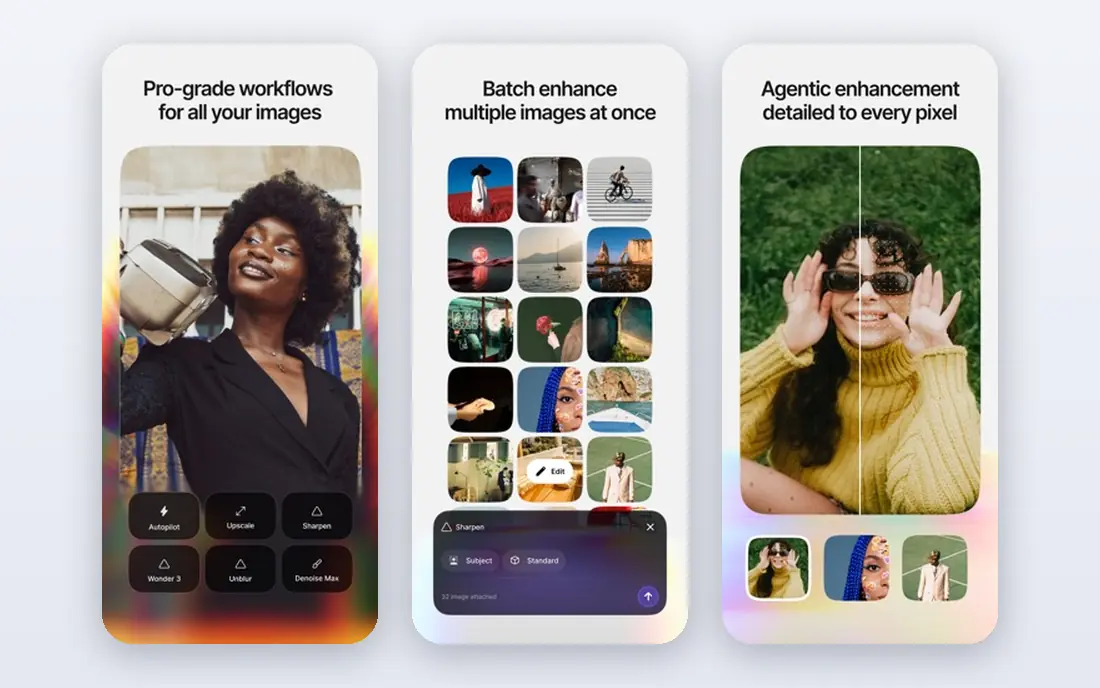
Topaz Gigapixel is the most controlled option in this list. It offers several models for different image types, including face recovery and detail reconstruction, and it supports batch processing for a full shoot. Local rendering keeps files on your own computer, which matters for unreleased or sensitive work, while cloud rendering is available on some plans.
Pricing moved to subscription in 2025, with new plans reported at $29 per month or $149 per year for personal use, so older perpetual license reviews are out of date. The cost is high for occasional use, but photographers who print large, restore old photos, or prepare images for clients will use the control and batch tools often enough to justify it. Check faces and fine text at full size, since even the best model can soften or alter small detail.
- Multiple specialized models
- Batch processing
- Local and cloud rendering
- Subscription pricing
- No free tier for new users
- Needs a capable computer for local work
Magnific takes a creative approach to upscaling. Instead of only enlarging existing pixels, it can add new texture and detail, with a creativity control that changes how much interpretation is applied. That makes it strong for advertising concepts, stylized scenes, and generated imagery that benefits from a richer finish. Bulk upload and API access suit teams with larger volumes.
The same strength is a risk for factual images. A creative upscaler can replace ambiguous pixels with convincing detail that was not in the original product, label, or face. For packshots, documents, and archival photos, use a low creativity setting and inspect the result closely. Magnific is now part of a broader creative suite, so check which bundle your plan includes before subscribing.
- Adjustable creativity
- High enlargement
- Bulk upload and API options
- Generative detail can alter factual content
- Pricing varies by plan and bundle
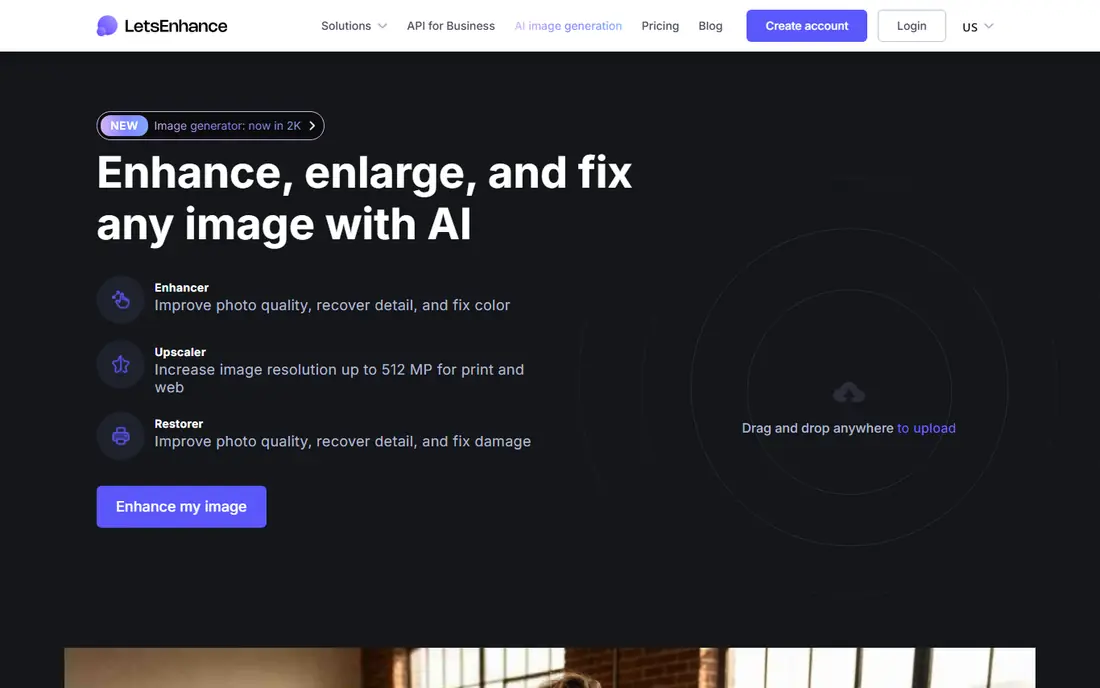
Lets Enhance is a browser tool for people who do not want to install desktop software. It offers enlargement from 2x to 16x, with modes aimed at products and small text, and it handles batch uploads for catalog work. Starter pricing is reported at $9 per month on annual billing, with 10 free credits for a first test.
Cloud processing means files leave your computer, so it is a poor fit for confidential unreleased images. Free credits are limited, and results depend heavily on source quality. For sellers and small teams who need quick, good-looking enlargements from a browser, Lets Enhance is a practical middle option between free tools and Topaz.
- Browser-based
- 2x to 16x enlargement
- Modes for products and small text
- Free outputs may be limited
- Cloud upload required
- Quality varies by source
Upscayl is the best free starting point for most people. The desktop app runs locally, so images stay on your computer, and it offers several models for different image types. It supports batch work on desktop, and it does not add a watermark to desktop output. For a photographer or seller who needs occasional enlargement without a subscription, it is hard to beat.
It is not as polished as paid tools, and model choice matters: the wrong model can sharpen noise or soften texture. Upscayl also offers a paid cloud option for users who want faster or hosted processing. Try two or three models on the same image and compare them at full size before settling on one for a full batch.
- Free desktop app
- Local processing
- No watermark on desktop output
- Results depend on model choice
- Cloud option is paid
- Interface is plain
VanceAI bundles upscaling with a wider set of enhancement tools, including sharpening, denoising, and portrait work. That breadth suits users who want one account for several image fixes rather than a single-purpose upscaler. Web access keeps it simple, and a desktop option is available for heavier use.
Free credits are limited, and credit costs vary by tool and output size, so we list pricing as See website. Claims of very high enlargement should be treated with care: a 40x figure does not mean a 40x image will look clean for print. Use VanceAI for quick web work and tests, and move to Topaz or a local tool for large print jobs.
- Wide tool set beyond upscaling
- Web and desktop options
- High enlargement claims
- Pricing and credit terms vary
- Free tier is limited
HitPaw Photo Enhancer is aimed at users who want a simple desktop workflow. It offers modes for general photos, faces, and other common cases, and it processes files locally on your computer. The interface is easier to learn than a professional suite, which helps for occasional restoration work and social images.
Control is the trade-off. You get fewer model choices and less fine tuning than Topaz Gigapixel, so a difficult image may not reach the same quality ceiling. Pricing also varies by license term and bundle, so check the current page before buying. For straightforward enhancement without a steep learning curve, HitPaw is a fair mid-priced option.
- Simple interface
- Face and general enhancement modes
- Desktop processing
- Less model control than Topaz
- Pricing varies by license term
ON1 Resize AI is built for photographers who already edit in ON1 or want resize as part of a print workflow. It uses AI models to enlarge images while trying to preserve edges and detail, and it supports batch resizing for a shoot. Print sizing and output controls are a natural fit for photographers preparing images for large prints.
As a standalone purchase, its value depends on how much you use the ON1 workflow. Users who edit in Lightroom or Photoshop may prefer Adobe Super Resolution or Topaz instead. If ON1 is already your editor, Resize AI is a logical addition that keeps resizing inside one app.
- Fits a photo editing workflow
- Print-oriented resizing
- Batch support
- Best value inside ON1 ecosystem
- Standalone pricing varies
Adobe Super Resolution, available in Lightroom and Camera Raw, enlarges images using Adobe machine learning models, with a 4x option in recent versions. For Creative Cloud subscribers, it costs nothing extra and keeps the enlarged file inside the normal editing workflow. That is a major convenience for photographers who already process RAW files in Adobe apps.
The ceiling is lower than Topaz or Magnific, and control over models is limited. It is best for moderate enlargements, such as turning a cropped image into a usable print or social file, rather than extreme enlargement of a tiny source. If you already pay for Creative Cloud, try it first before buying a specialist upscaler.
- Inside Lightroom and Photoshop
- No extra app to learn
- Good for RAW files
- Enlargement ceiling is lower than specialist tools
- Needs a Creative Cloud plan
Remini is best known for restoring faces in old, blurry, or low-resolution photos, and its mobile app makes that work simple. You upload a photo, choose an enhancement, and get a cleaner version with improved facial detail. That simplicity suits family photo restoration and quick social sharing.
It is less suited to controlled print work, where Topaz offers more models and batch control. Pricing has varied by platform and term, including weekly options on mobile, so we list it as See website and suggest checking the app store listing for your device. For faces in old photos, Remini is often the fastest route to a usable result.
- Strong face restoration
- Mobile app
- Simple one-tap workflow
- Subscription and weekly pricing vary
- Less control for print work
How we picked these
We compared vendor pricing and feature pages with recent 2026 roundups, and we favored tools that are still sold and supported in October 2026. We included faithful and generative approaches, local and cloud tools, and free and paid options, since a product seller and a family archivist do not need the same tool. We did not claim hands-on testing, and we used See website where prices varied by plan, bundle, or app store.
How to judge an upscale honestly
Always compare the result with the original at full size, not just in a small preview. Look at faces, hands, text, logos, and repeating patterns, since those are where invented detail shows up first. A preview that looks sharp can still contain altered lettering or changed fabric texture when viewed at print size.
Next, test the same image at the size you actually need. A 2x enlargement for web use is a different job from a 6x enlargement for a poster, and a tool that excels at one may fail at the other. For product and factual images, prefer a faithful model and a low creativity setting, and keep the original file so you can redo the work if a better model appears.
Frequently asked questions
What is the best ai image upscaler enhancer tool for photos?
Topaz Gigapixel is our pick for serious photo work because it offers model control, batch processing, and local rendering. Adobe Super Resolution is the pick for Creative Cloud users who want a simpler in-app option. Upscayl is the pick for free local upscaling.
What is the best ai image upscaler and enhancer tool for product images?
Lets Enhance and Topaz Gigapixel suit product images best, since they offer modes aimed at faithful detail and batch work. Magnific can look striking, but its generative detail needs close checking for labels, stitching, and material texture. Always inspect product images at full size before publishing.
Can AI upscalers really add detail that was not in the original?
Yes, but that detail is predicted, not recovered. Generative tools can invent plausible texture that looks real, while faithful tools try to reconstruct likely detail from patterns in the image. That difference matters for evidence, archives, and product accuracy, where invented detail can mislead.
Is a free AI image upscaler good enough?
For web use and occasional work, yes. Upscayl gives free local upscaling without a watermark on desktop output, and Lets Enhance offers free credits for a test. Paid tools earn their price for large prints, batch catalog work, and difficult restoration, where model control and output quality matter more.
Should I use a desktop or web upscaler?
Use desktop tools such as Topaz Gigapixel or Upscayl when files are sensitive or you need batch control and local processing. Use web tools such as Lets Enhance or Magnific when you want quick access from any computer and do not mind uploading files. For confidential work, local processing is the safer choice.
Sources
See where you really rank - block by block
ProMapRanker scans Google Maps across a grid of your service area. Simple monthly plans from $19, white-label on every plan.
Start freeKeep reading
 zoho books alternatives
Best Zoho Books Alternatives in 2026
Compare the best zoho books alternatives for small business accounting, from QuickBooks Online and Xero to FreshBooks, Wave, and Sage in 2026, with pricing.
Read → zluri alternatives
Best Zluri Alternatives in 2026
Compare zluri alternatives for 2026, with SaaS management platforms for app discovery, spend tracking, renewals, and automation for IT, finance and procurement.
Read → zerobounce alternatives
Best ZeroBounce Alternatives in 2026
Best zerobounce alternatives for list hygiene: compare 8 email verification tools for bulk cleaning, real-time checks and catch-all handling in 2026 today.
Read →