 ProMapRanker
Adobe Alternatives in 2026: 10 Tools Compared

Professional photo, vector, and layout · Pricing starts at: Free
Key takeaways
- Affinity, now free under Canva, is the closest professional desktop alternative for photo, vector, and layout work.
- GIMP and Photopea cover serious photo editing for free, with Photopea running in a browser and GIMP running on desktop.
- Canva and Figma suit teams and non-designers better than pixel-perfect photo editing, since they focus on templates and collaboration.
- No single tool replaces every Adobe app, so most switchers combine two or three alternatives by task.
Quick comparison
| Pick | Great for | Pricing starts at | Free tier | |
|---|---|---|---|---|
| Affinity | Professional photo, vector, and layout | Free | Yes | Visit |
 GIMP GIMP | Free desktop photo editing | Free | Yes | Visit |
 Photopea Photopea | Browser-based PSD editing | Free | Yes | Visit |
 Canva Canva | Templates and team design | Free | Yes | Visit |
 Figma Figma | UI design and collaboration | Free | Yes | Visit |
 Inkscape Inkscape | Free vector illustration | Free | Yes | Visit |
 Krita Krita | Digital painting and illustration | Free | Yes | Visit |
 DaVinci Resolve DaVinci Resolve | Video editing and colour | Free | Yes | Visit |
 Pixelmator Pro Pixelmator Pro | Mac photo editing | $49.99 one-time | No | Visit |
 Capture One Capture One | Professional RAW photo workflow | See website | Free trial | Visit |
The best adobe alternatives
Adobe Creative Cloud covers photo editing, vector design, layout, video, and more, so a single replacement rarely fits every task. The list below groups alternatives by the Adobe app they most closely replace, from Photoshop and Illustrator to Premiere Pro and InDesign. The quick comparison table above works as a chart for comparing them at a glance, with price and best use side by side.
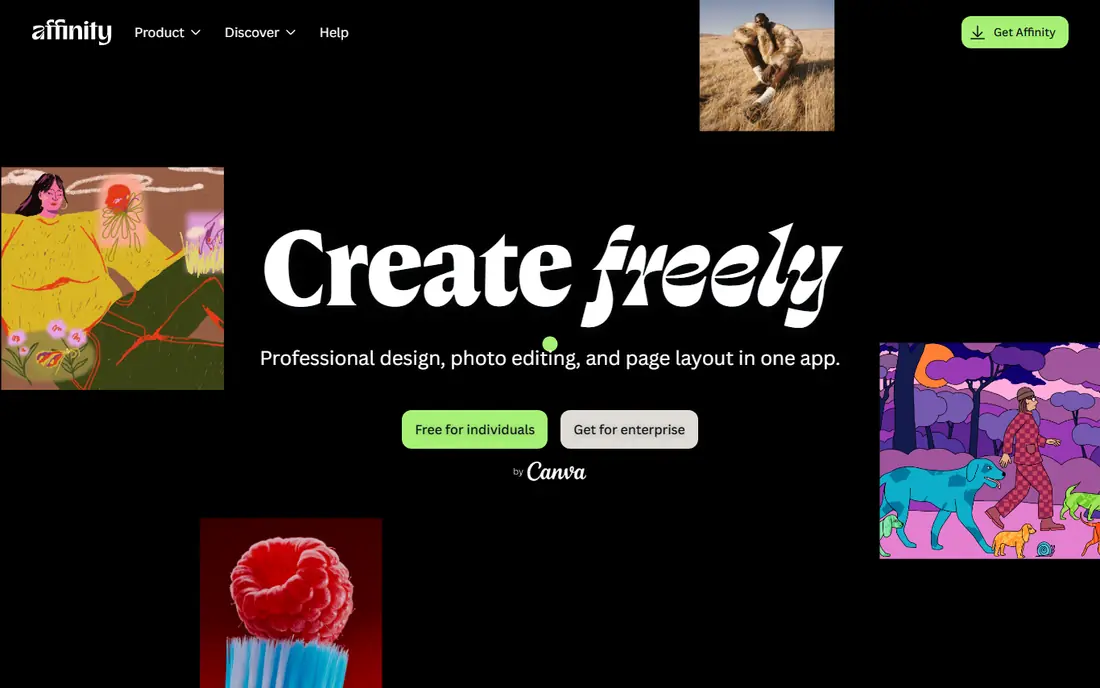
Affinity is the strongest overall Adobe alternative, because it covers photo editing, vector design, and page layout in one unified suite. Since October 2025, Affinity has been free under Canva, which removed the main barrier for switchers who previously paid a one-time price. Its interface feels familiar to Photoshop and Illustrator users, with layers, masks, RAW processing, and full PSD compatibility.
The trade-off is ecosystem. Adobe has a larger plugin library, deeper integration with stock and fonts, and a longer history in large studios. Some Affinity AI features also need a paid Canva plan. For most individual designers and small teams, though, Affinity now offers professional tools at no licence cost, which is a major shift.
- Unified photo, vector, and layout tools
- PSD and PDF support
- Now free with a Canva account for individuals
- Some AI features need a paid Canva plan
- Ecosystem is smaller than Adobe
- Plugin support differs
GIMP is the long-running free and open-source alternative to Photoshop. It offers layers, masks, retouching, scripting, and a large plugin ecosystem, and it runs on Windows, macOS, and Linux. For users who want a full desktop editor without a subscription, GIMP remains a capable choice, especially for retouching and compositing.
The interface is its main weakness. Terminology and layout differ from Photoshop, and new users may need time to adjust. Some features, such as RAW handling, rely on plugins or companion tools. If you can accept a less polished interface, GIMP gives you professional depth for free.
- Free and open source
- Layers, masks, and scripting
- Large plugin ecosystem
- Interface feels less polished than Photoshop
- Learning curve for Adobe users
- Some workflows need plugins
Photopea is the fastest way to edit a PSD file without installing anything. It runs in a browser, opens PSD, AI, and other layered files, and uses an interface that Photoshop users will recognise quickly. That makes it ideal for Chromebooks, shared computers, and quick edits on the go.
The free version is ad-supported, and a premium plan removes ads. Performance depends on your browser and available memory, so very large files may feel slower than in a desktop app. For quick PSD work and for users who cannot install software, Photopea is an excellent free alternative.
- Runs in any modern browser with no install
- Near-native PSD support
- Photoshop-like interface
- Free version includes ads
- Performance depends on browser and memory
- No desktop app in the same way as Photoshop
Canva is the alternative for non-designers and marketing teams, rather than for professional photo retouching. Its template library covers social posts, presentations, flyers, and brand graphics, and teams can share brand kits and collaborate in the browser. The free plan is genuinely useful for everyday designs, while Pro adds premium assets, background removal, and AI features.
It will not replace Photoshop for detailed editing, and heavy template use can make designs look similar. For a small business that needs fast, good-looking graphics without design training, Canva is the most practical Adobe alternative. It also now owns Affinity, which gives Canva users a path to deeper desktop editing.
- Huge template and asset library
- Easy collaboration
- Free plan covers many everyday designs
- Not suited to pixel-level photo editing
- Premium assets and AI features need Pro
- Template look can feel generic
Figma replaces Adobe XD and, for many teams, parts of Illustrator for interface work. It is built for UI design, prototyping, and design systems, with real-time collaboration that lets several designers work on the same file at once. The free starter plan covers individuals and small projects, while paid seats add more shared files and features.
It is not a photo editor, so it should not be judged against Photoshop. For product teams, web designers, and anyone building interfaces, Figma is the standard alternative. Its browser-based workflow also makes it easy for stakeholders to view and comment without installing software.
- Real-time collaboration
- Strong UI and prototyping tools
- Free starter plan for individuals
- Not a photo editor
- Full seats cost more for teams
- Needs an internet connection for full collaboration
Inkscape is the free vector alternative to Illustrator. It offers drawing, path editing, text on paths, and SVG support, which suits logo design, illustration, and print work. As open-source software, it costs nothing and runs on all major desktop platforms, with a community that maintains tutorials and extensions.
The interface is less polished than Illustrator, and very complex files can feel slower. For professional vector work on a budget, though, Inkscape is a serious tool, not just a beginner option. It pairs well with GIMP for a complete free design setup.
- Free and open source
- Strong SVG and vector tools
- Runs on Windows, macOS, and Linux
- Interface can feel dated
- Performance on very complex files varies
- Smaller ecosystem than Illustrator
Krita is the alternative for digital painters and illustrators, rather than for photo editors. Its brush engine, stabilisers, and animation tools are widely praised, and it supports tablets and PSD import and export. Concept artists, comic artists, and illustrators often prefer Krita to Photoshop for painting, since the tools are built for that job.
Photo retouching is not its strength, so photographers should look at Affinity, GIMP, or Photopea instead. For painting and illustration, Krita is free, open source, and actively maintained, which makes it an easy recommendation for artists on any budget.
- Advanced brush engine
- Animation tools
- Tablet support and PSD import
- Not built for photo retouching
- Interface is geared to painters
- Photo workflows are limited
DaVinci Resolve is the video alternative to Premiere Pro, with editing, colour grading, visual effects, and audio tools in one app. The free version is unusually capable, covering most editing and colour work that independent creators and small studios need. Its colour tools are a particular strength, since Resolve began as a grading system.
It demands a capable computer, especially for 4K work, and beginners may find the interface dense. The paid Studio version adds extra effects, higher resolutions, and collaboration features. For video creators leaving Adobe, DaVinci Resolve is the most professional free route.
- Professional video editing and colour grading
- Free version is very capable
- Used in professional post-production
- Needs a capable computer for smooth editing
- Learning curve for beginners
- Studio version is paid for extra features
Pixelmator Pro is the Mac-native alternative for users who want a fast, one-time-purchase photo editor. It supports PSD and RAW files, offers machine-learning-assisted tools, and feels at home on macOS and iPad. The one-time price makes the total cost easy to compare against a yearly Adobe subscription.
Windows and Linux users cannot use it, and its plugin ecosystem is smaller than Photoshop. For Mac users who want a polished editor without a subscription, Pixelmator Pro is a strong choice, especially alongside Affinity for vector or layout work.
- Fast Mac-native editing
- PSD and RAW support
- One-time purchase rather than a subscription
- Mac and iPad only
- Smaller plugin ecosystem than Photoshop
- Newer versions may involve upgrade costs
Capture One is the alternative for photographers who prioritise RAW processing and studio work over general compositing. It offers detailed colour controls, tethered shooting for studio sessions, and a workflow built around large photo libraries. Professionals who shoot in RAW often prefer its rendering and colour tools to Lightroom.
It is not a Photoshop replacement for compositing, and pricing is higher than free tools, with subscription and perpetual options depending on tier. A trial is the best way to judge its colour and tethering on your own files. For serious photographers, Capture One is a credible professional alternative.
- High-quality RAW processing
- Tethered studio shooting
- Strong colour and detail controls
- Subscription or higher perpetual price
- Steeper learning curve
- Not a general compositing tool
How we picked these
We compared official product pages, pricing pages, and public alternative comparisons for Adobe Creative Cloud apps in October 2026. We kept tools that are currently available, replace a clear Adobe app or workflow, and offer a free, trial, or one-time route to test. We did not test every preset or plugin, since those rarely transfer directly between apps, so we advise rebuilding presets and checking file compatibility before a full switch.
How to switch without losing work
Start by listing the Adobe apps you actually use, not the full Creative Cloud suite. Many users pay for the whole suite but only use Photoshop, Lightroom, or Premiere Pro regularly. That list tells you whether you need one replacement or a small set, such as Affinity for photo and layout plus DaVinci Resolve for video.
Next, test file compatibility on real projects. Open a PSD, an AI file, or a RAW catalogue in the alternative, and check layers, fonts, and colours before committing. Keep Adobe installed during the transition if you can, so old projects remain accessible while you rebuild presets and templates.
Finally, plan for learning time. Even a close alternative uses different shortcuts and panel layouts, and that adjustment can slow work for a week or two. Start with a small project, build new templates in the alternative, and only cancel Adobe once your daily workflow runs smoothly without it.
Frequently asked questions
What are the best adobe alternatives free?
Affinity, GIMP, Photopea, Inkscape, Krita, Canva, Figma, and DaVinci Resolve all offer free plans or free versions. Affinity is the strongest free professional desktop suite, while GIMP and Photopea cover photo editing, and Canva covers templates.
What are alternatives to Adobe for Photoshop specifically?
Affinity Photo, GIMP, and Photopea are the closest Photoshop alternatives, with Pixelmator Pro as a strong Mac-only option. Affinity is closest for professional workflows, GIMP is best for a free desktop editor, and Photopea is best for browser-based PSD editing.
Is there an Adobe alternatives chart to compare them?
Yes, the quick comparison table at the top of this article works as a chart, with best use, starting price, and free plan side by side. Use it to shortlist by task, then read the full section for the tool that matches your main Adobe app.
Can I open Adobe files in these alternatives?
Many alternatives open PSD, AI, and PDF files, but compatibility is not perfect for every layer, effect, or font. Test your own files before switching, and keep original Adobe files as backups during the transition.
Do I need to cancel Adobe to use these tools?
No, you can run alternatives alongside Adobe during a trial period. That overlap lets you test workflows, rebuild templates, and confirm file compatibility before you cancel a subscription.
Sources
See where you really rank - block by block
ProMapRanker scans Google Maps across a grid of your service area. Simple monthly plans from $19, white-label on every plan.
Start freeKeep reading
 zeffy payment processor stripe alternatives
Zeffy and Stripe Alternatives for Nonprofits in 2026
Explore zeffy payment processor stripe alternatives for nonprofits. We compare 8 fundraising platforms on fees, donor tools, and nonprofit focus. Check fees.
Read → workday alternatives
Workday Alternatives in 2026
Workday alternatives compared: we review 8 HR and payroll platforms that replace Workday, with pricing, strengths and honest limits for each team size.
Read → what's the best weather app
What's the Best Weather App in 2026
Wondering what's the best weather app? We compare 10 free and paid apps for forecasts, radar, alerts, and Colorado mountain weather for everyday and storm use.
Read →